The Mac screen recorder that [frames] itself
Record any window or region with auto-zoom that follows your cursor and system audio plus mic in a single click. The same app wraps your screenshots in beautiful backgrounds and real macOS window frames. Pay once, no watermark, nothing leaves your Mac.
- One-time $19
- No subscription
- No account
- On-device
macOS already records your screen. Press Shift-Command-5 and you have a decent clip in seconds. What it will not do is zoom in on what you are pointing at, capture the sound your Mac is playing, or turn a raw grab into something that looks designed. Kapshot does all three, natively, and it takes screenshots too.
This page covers both halves of the app. First, the fastest ways to record a Mac screen, including the free built-in tools and where they run out of road. Then the recorder features that make Kapshot worth the one-time price, and finally the screenshot side, because the two jobs matter equally here.
Three ways to record your Mac screen
You have two free options built into macOS and one native app that removes their limits. All three are genuine ways to record. Pick by how much you care about audio, zoom, and a clean export.
- 1
The Shift-Command-5 toolbar
Press ⇧⌘5 to open the Screenshot toolbar. Choose Record Entire Screen or Record Selected Portion, open Options to set a save location, a timer, and your microphone, then click Record. Stop from the menu bar or with ⇧⌘5 again. It captures the mic only, never the internal system audio, and it does not follow your cursor. - 2
QuickTime Player
Open QuickTime Player and choose File, New Screen Recording. It hands you the same Shift-Command-5 controls, so the capabilities are identical: microphone yes, system audio no, no auto-zoom. QuickTime is handy when you want to trim and export a single file without leaving the app. - 3
Kapshot, in one click
Open Kapshot, pick a window or drag a region, and flip system audio and mic on together. Hit record and auto-zoom follows your cursor from the first frame. When you stop, the recording is ready to export clean, with no watermark and nothing uploaded.
About internal audio
How Kapshot compares
The built-in tools are free and fine for a quick grab. Screen Studio and Loom add more, but one is a steep purchase and the other sends your video to the cloud on a subscription. Here is where each one lands on the things that matter for a Mac recording.
| Kapshot | Built-in (macOS) | Screen Studio | Loom | |
|---|---|---|---|---|
| Auto-zoom on the cursor | ||||
| System audio without extra setup | ||||
| No watermark | ||||
| Price | $19 once | Free | One-time, pricier | Subscription |
| Records on-device | ||||
| Beautifies screenshots too |
The honest summary: for a throwaway clip with no sound, the built-in recorder is all you need. The moment you want your cursor emphasized, the app's own audio in the file, and a clean export you own outright, a native tool earns its place. Kapshot is that tool, and it does screenshots in the same app.
Made for serious [recordings]
Auto-zoom, system audio, and no watermark, with nothing to configure. All of it native, all of it on your Mac.
Auto-zoom that follows your cursor
Kapshot watches where you point and eases into each click, so the important part of the frame is already magnified when a viewer needs it. No keyframes, no manual zoom passes, no timeline scrubbing after the fact.
System audio and mic in one click
Record the sound your Mac is playing and your voice together, from a single toggle. No BlackHole, no aggregate audio device, no Audio MIDI Setup. The thing macOS makes you rig by hand is just a switch here.
No watermark, no time limit
Every recording exports clean. There is no logo burned into the corner, no five-minute ceiling, and no upgrade nag stamped over your work. What you record is what you keep, at full quality.
Everything renders on your Mac
Capture, auto-zoom, and export all happen locally. Nothing uploads to a server, there is no account to create, and no link expires. Your recordings live on your disk and belong to you.
And it takes screenshots too
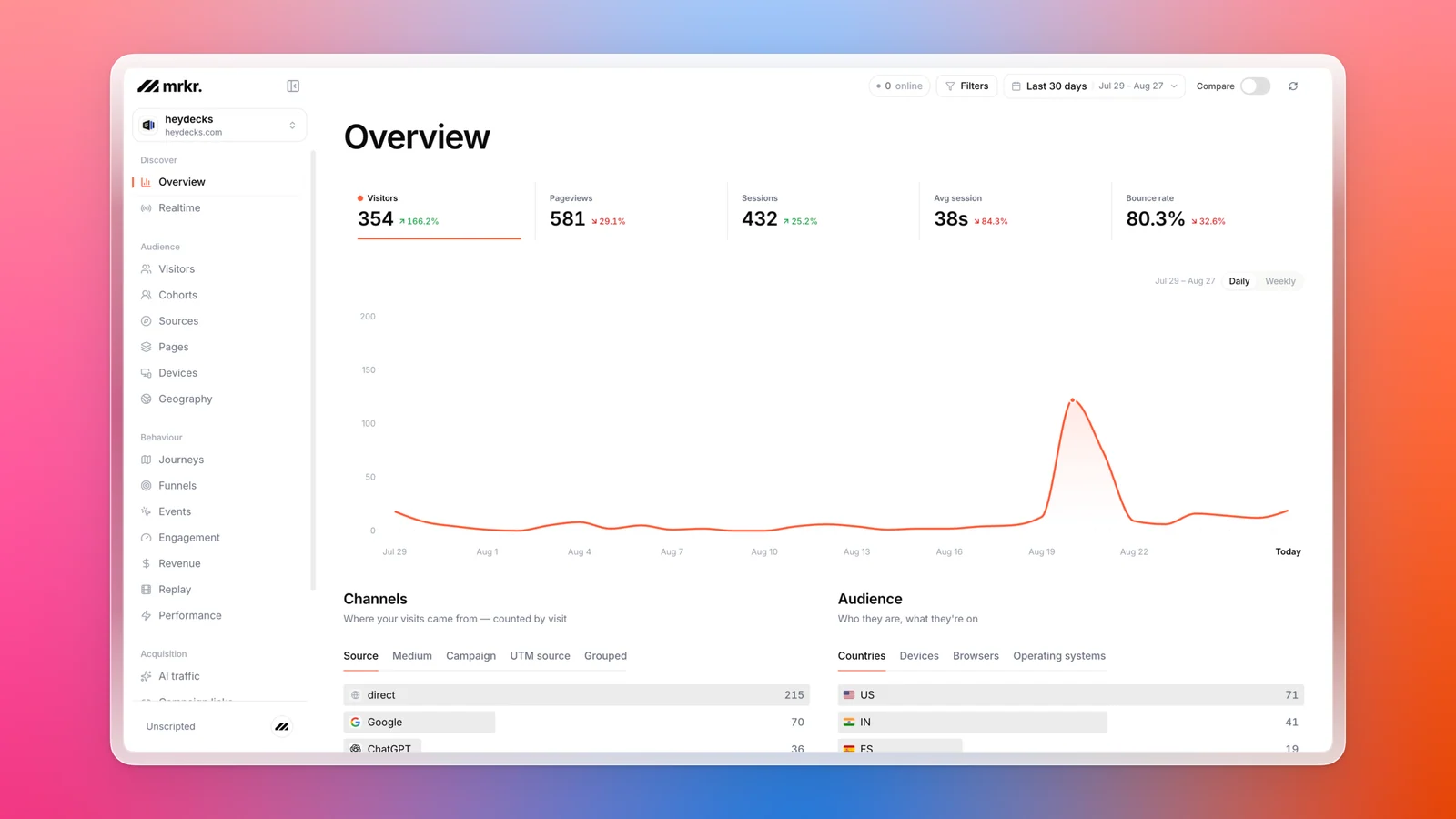
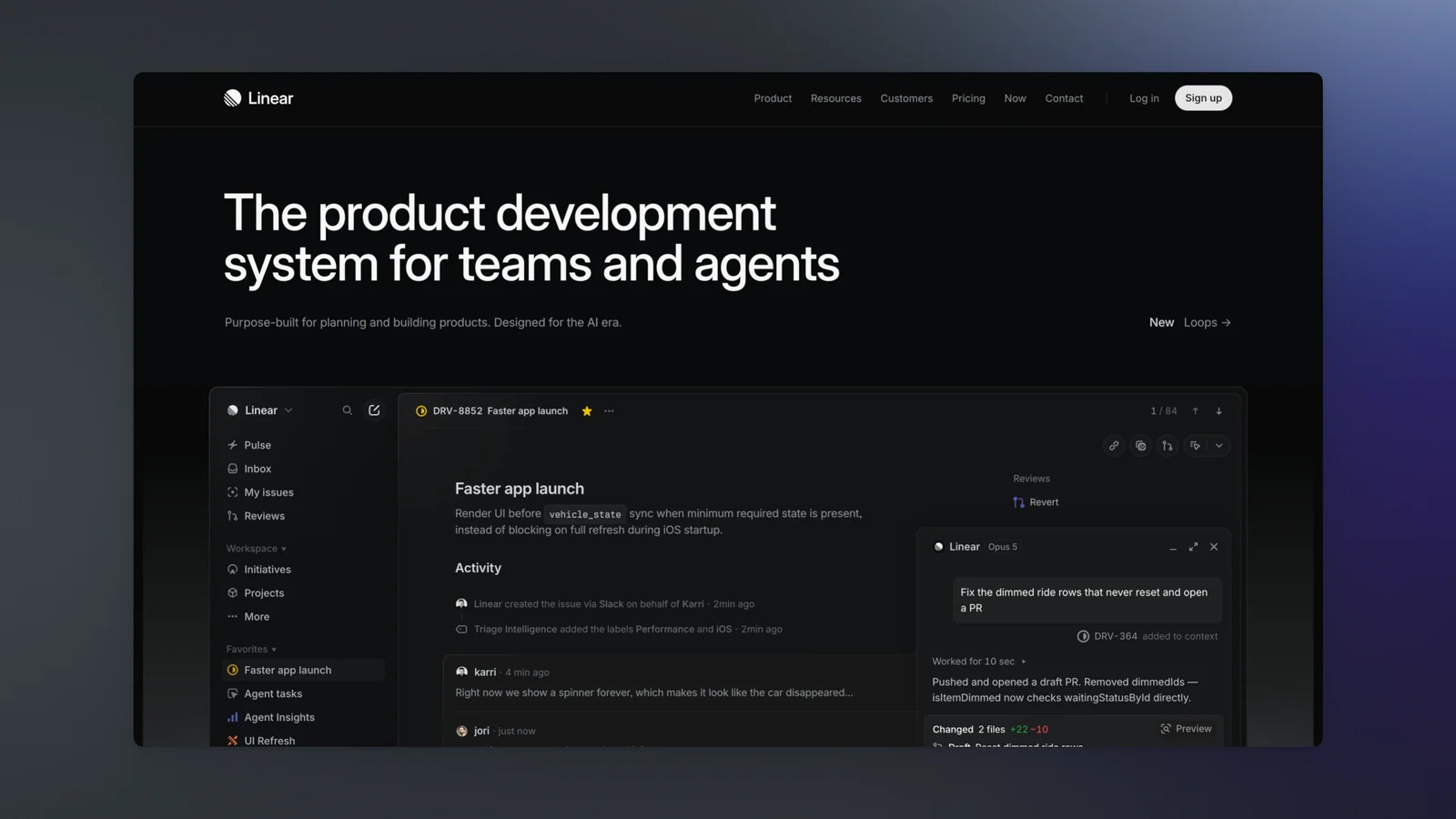
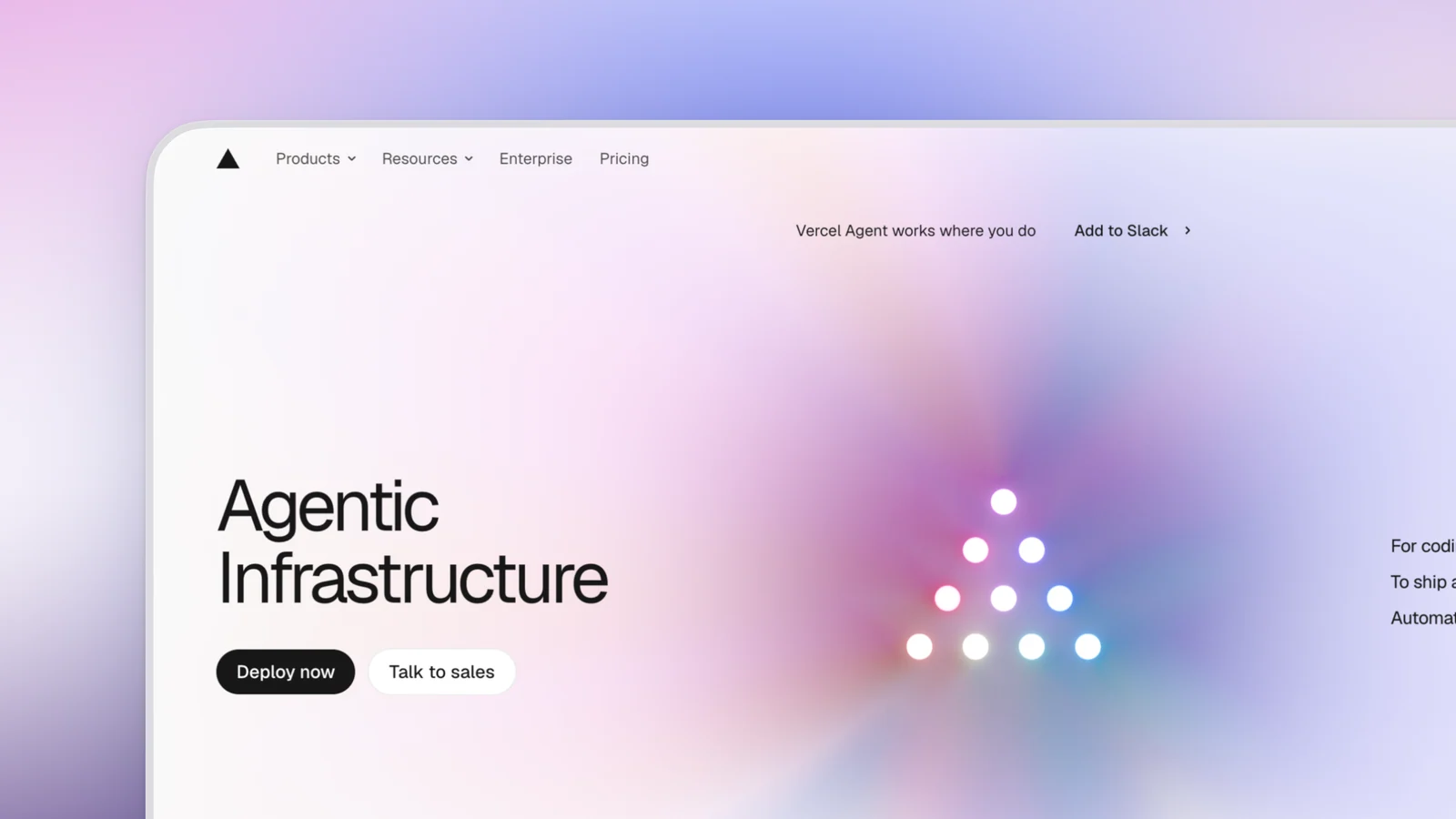
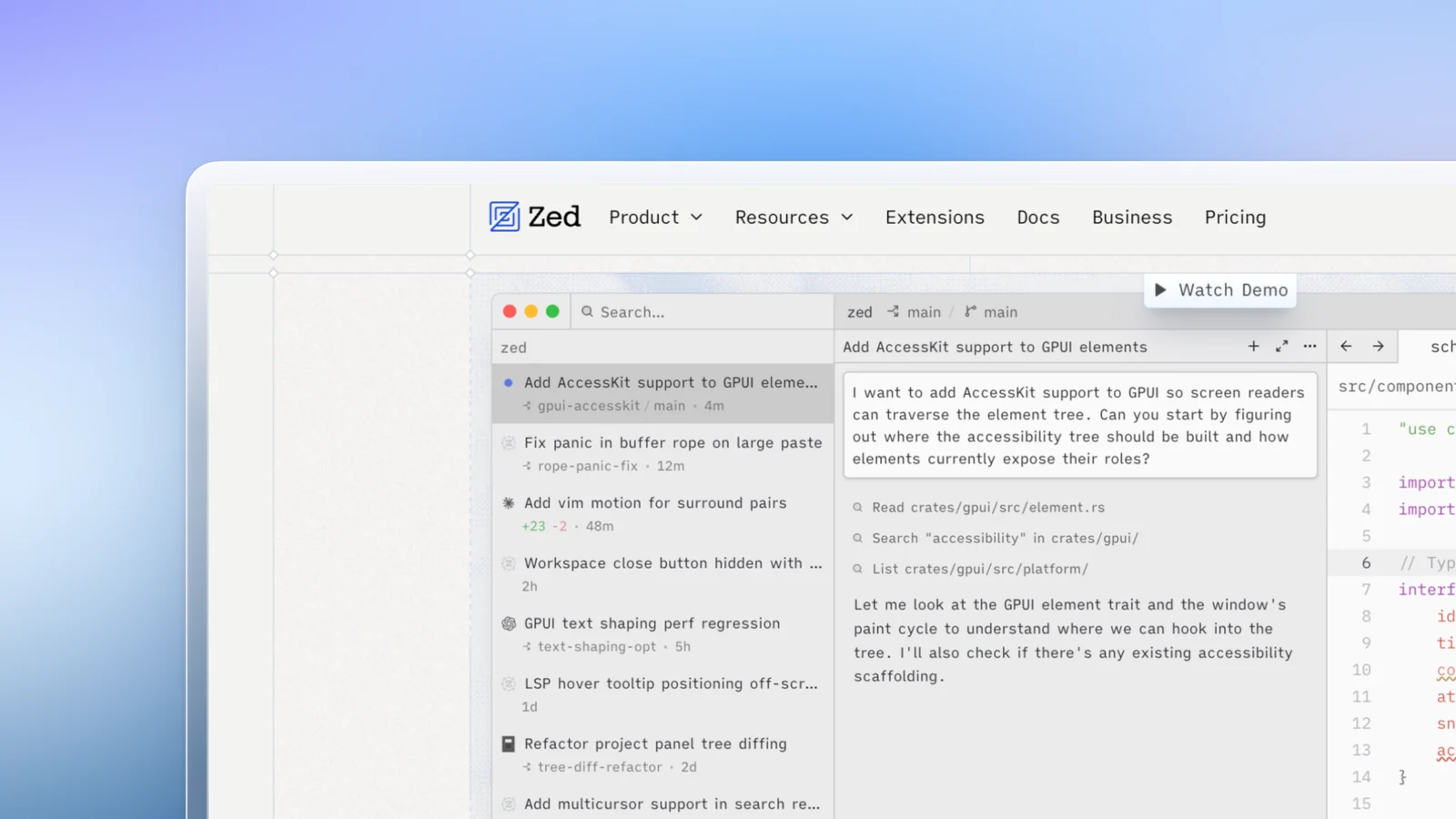
Kapshot is not only a recorder. It captures still screenshots and wraps them in beautiful backgrounds, a real macOS window frame, and a true soft shadow, so a plain grab reads as something you made on purpose. Padding, corner radius, and backdrop are tuned to look designed from the first click.
- Drop any screenshot onto a gradient, mesh, or solid backdrop with adjustable padding.
- Wrap it in an authentic macOS window chrome, or turn the frame off for a flat crop.
- Copy a crisp still to the clipboard, or export at the exact size a store or slide needs.
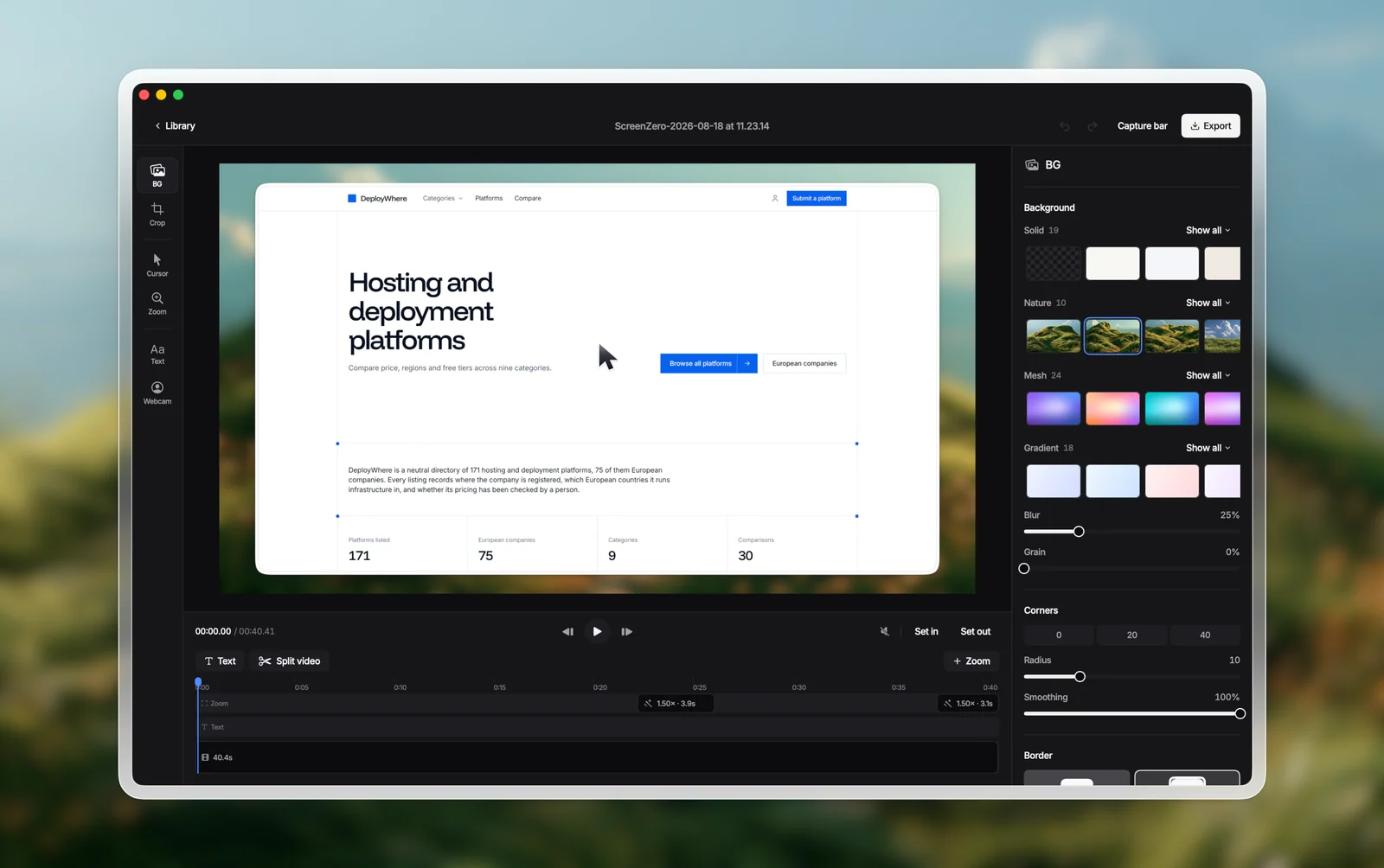
Because recording and screenshots live in the same app, you learn one tool and one set of controls for both. The clips below and the gallery are real captures, framed and beautified on a Mac.
Made with [Kapshot]
Real captures, framed and beautified on a Mac.

FAQ
Record it, shoot it, [keep] it.
Auto-zoom recording, one-click system audio, and screenshots it beautifies for you. One native Mac app, one payment, nothing leaves your machine.
Or try the free 7 day trial. No account, no subscription.